
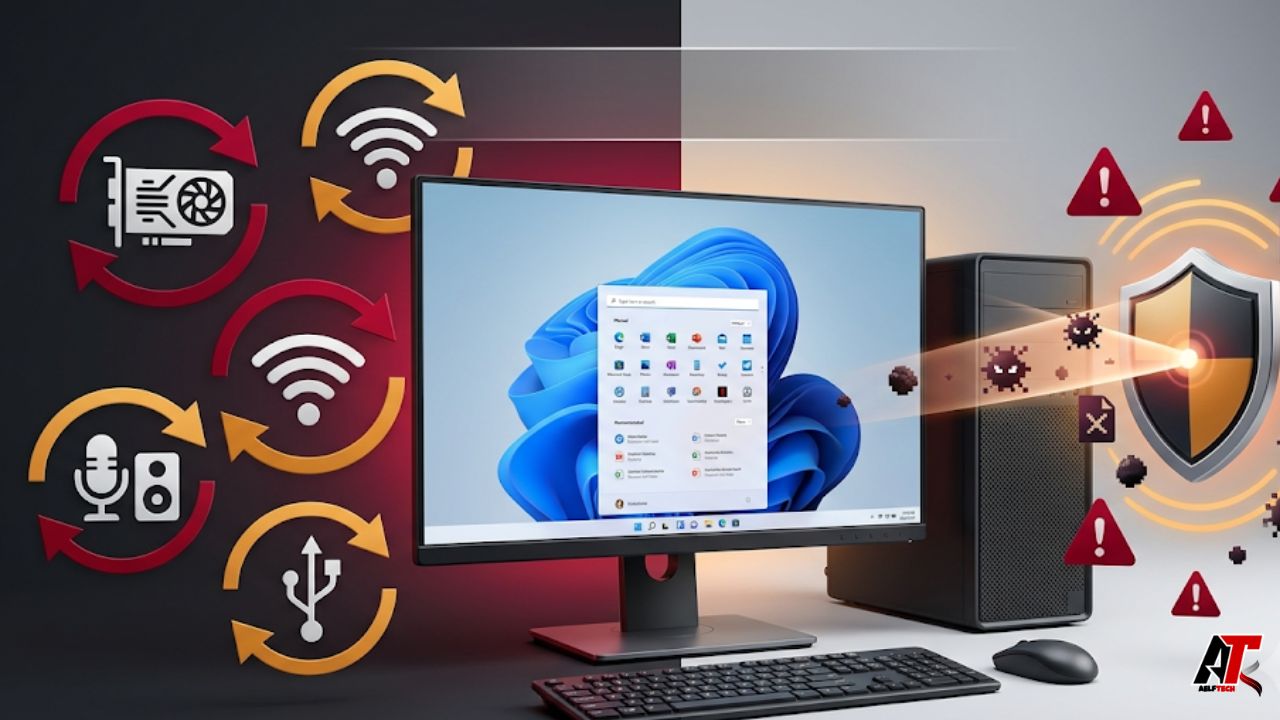
A Windows computer can become slow, unstable, or frustrating even when its hardware is still capable. Outdated device drivers, missing software components, and malware can quietly interfere with performance. A practical maintenance routine should therefore cover two areas: keeping hardware drivers current and scanning the system for malicious software.
This guide explains how to update drivers easily with Driver Booster, when to use Windows Update or Device Manager instead, and how to protect your computer with free malware removal tools built into Windows. The goal is not to update everything blindly. It is to maintain a stable, secure PC while reducing the risk of incompatible drivers, fake downloads, and unnecessary software.
What Are Device Drivers and Why Do They Matter?
A device driver is software that allows Windows to communicate with hardware. Graphics cards, Wi-Fi adapters, printers, Bluetooth devices, sound systems, webcams, chipsets, and USB controllers all rely on drivers. When a driver is missing, corrupted, or incompatible, the related device may stop working correctly.
Driver problems may cause no sound, unstable Wi-Fi, screen flickering, weak gaming performance, an offline printer, or devices that disconnect unexpectedly. Some issues begin after a major Windows update, while others develop because the installed driver is old or damaged.
Microsoft recommends Windows Update as the main source for recommended hardware drivers. Optional driver updates may also appear under Advanced options. Device Manager lets users search for a newer driver, reinstall a damaged one, or roll back an update that caused problems. [2][3]
These built-in methods are dependable, but checking several devices manually can take time. A dedicated utility can help users who want a faster overview of outdated or missing drivers.
How Driver Booster Simplifies Driver Updates
Driver Booster is a Windows utility that scans the computer, identifies outdated, missing, or broken drivers, and presents available replacements in one interface. Instead of searching separately for graphics, network, audio, chipset, printer, and USB drivers, you can review detected updates from a central dashboard.
According to IObit, Driver Booster supports hardware from many major manufacturers and checks driver packages through Microsoft WHQL verification plus an additional security scan. The free edition handles basic scanning and updates, while some automation and support features may require the paid version. [1]
For users who are uncomfortable identifying exact hardware models, a driver updater can make routine maintenance easier. However, convenience should not replace judgment. Review the proposed updates and create a restore point before installing several drivers.
Use the official website to update drivers safely instead of downloading installers from unofficial software pages.
Step-by-Step: Update Drivers Easily with Driver Booster
1. Download from the Official Website
Begin with the official IObit website. Third-party download pages may provide outdated installers or bundle unwanted programs. Confirm the website address before downloading, and read each installation screen rather than accepting every default option automatically.
2. Create a Restore Point
Driver updates are normally straightforward, but any system-level change can cause an unexpected conflict. Save important documents and create a Windows restore point before updating multiple drivers. Close games, editors, and other applications that actively use graphics or audio hardware.
3. Run a Driver Scan
Open Driver Booster and start a scan. The program will inspect installed devices and compare driver versions with available packages. When the scan finishes, review the device name, current version, available version, release date, and update status instead of selecting every result immediately.
Pay special attention to graphics, network, audio, chipset, Bluetooth, and storage-related drivers because these components can strongly affect everyday performance.
4. Prioritize Necessary Updates
Install drivers that address an actual problem, add compatibility for new software, or resolve a known stability or security issue. A graphics driver may help when a new game crashes, while a network driver may be relevant when Wi-Fi repeatedly disconnects.
If the computer is working perfectly, do not treat every older driver as an emergency. Some laptop and desktop manufacturers provide customized drivers for specific models, so their support pages may offer the most suitable version.
5. Install in Small Groups
Update a few related drivers at a time. Start with the driver connected to the current problem, restart the computer, and test the device before moving to the next group.
A brief black screen, audio interruption, or network disconnection can occur while certain drivers are replaced. Let the process finish and avoid forcing the PC to shut down unless it remains completely unresponsive.
6. Restart and Test
Restart Windows after installation, even when it is not required. Then test the related hardware: play audio, reconnect Bluetooth devices, open a graphics-intensive application, print a test page, or confirm that Wi-Fi remains stable.
If the new driver creates problems, use Windows System Restore, Driver Booster’s recovery options, or Roll Back Driver in Device Manager.
Driver Booster vs. Windows Update and Device Manager
There is no single update method that is best for every situation. Windows Update is the recommended first option for many users because Microsoft distributes tested drivers for common hardware alongside operating system and security updates. [2][3]
Device Manager is useful when one specific device is malfunctioning. You can update, uninstall, reinstall, or roll back its driver without scanning the whole computer. It also lets you install a driver downloaded directly from the hardware manufacturer.
Driver Booster is most useful when you want to scan many devices quickly or identify drivers that Windows Update has not highlighted. Its central interface reduces manual searching, especially on older PCs with several peripherals.
A sensible order is to check Windows Update first, use the manufacturer’s website for specialized hardware, and consider a trusted driver updater when you need a broader automated scan.
Why Driver Updates Alone Cannot Protect Your PC
Updated drivers can improve hardware stability and close some compatibility or security gaps, but they do not remove viruses, spyware, ransomware, browser hijackers, or other malicious software.
Malware may enter through phishing emails, fake downloads, cracked programs, malicious advertisements, compromised browser extensions, or unsafe attachments. It can consume system resources, display pop-ups, redirect searches, steal information, or reinstall itself after a restart.
That is why driver maintenance should be paired with malware protection. Windows includes Windows Security, which provides Microsoft Defender Antivirus, real-time protection, threat scanning, quarantine, and offline scan options. [4]
Signs Your Computer May Need a Malware Scan
Run a security scan when the PC suddenly becomes much slower, the browser opens unfamiliar pages, pop-ups appear outside normal websites, battery or data usage rises unexpectedly, or unknown programs launch at startup.
Other warning signs include disabled security settings, unexplained account activity, unusually high processor or disk usage, files being renamed or encrypted, and repeated crashes. These symptoms do not always prove malware is present, but they justify a careful scan.
Do not download the first “PC cleaner” advertised in a pop-up. Fake warnings often pressure users into installing more unwanted software. Open Windows Security directly from the Start menu instead.
How to Remove Malware for Free with Windows Security
1. Update Security Intelligence
Open Windows Security, select Virus & threat protection, and check for protection updates. Current security intelligence helps Microsoft Defender identify newer threats. Windows normally updates it automatically, but a manual check is useful before a deep scan. [4]
2. Run a Quick Scan
A quick scan checks common locations where malware is likely to run. Open Virus & threat protection and select Quick scan. If a threat is found, follow the recommended action to quarantine or remove it.
3. Use a Full Scan for Continuing Symptoms
A full scan checks files and programs across the system. It takes longer, especially on computers with large drives, but it is appropriate when suspicious behavior continues after a quick scan.
Open Scan options, choose Full scan, and let it finish. Keep a laptop connected to power and avoid opening unfamiliar files while the scan is running.
4. Use Microsoft Defender Offline for Persistent Threats
Some malware tries to hide while Windows is running. Microsoft Defender Offline restarts the PC and scans from the recovery environment, making it harder for persistent malware to defend itself. [4]
Save your work before selecting the offline scan. After Windows loads again, open Protection history to review detected or removed items.
5. Review Apps and Browser Extensions
After scanning, review installed applications and browser extensions. Uninstall programs you do not recognize, especially those installed around the time the problem began. Reset browser settings if redirects or unwanted search engines remain.
Avoid deleting system files manually. Let Windows Security quarantine threats and use official uninstallers for legitimate applications.
Essential PC Safety Practices
Always download drivers and security tools from official sources. Avoid websites that promise a special driver for every error, and never install software because a pop-up claims your system is at risk.
Keep Windows Update enabled, use a modern browser, and leave real-time protection on. Microsoft notes that Defender may move into disabled mode when another real-time antivirus product is installed. Two full real-time antivirus programs can create conflicts, so use one primary protection solution. [4]
Use unique passwords, enable multi-factor authentication where available, and back up important files to a separate drive or reputable cloud service. Malware removal cannot always reverse damaged or encrypted files.
For more practical PC maintenance and technology guides, visit aelftech.com.
Common Mistakes to Avoid
Do not update every driver without reviewing the list. A newer version is not automatically better for every device, particularly when a computer manufacturer uses customized graphics, audio, touchpad, or power-management drivers.
Do not download drivers from random websites. Use Windows Update, the hardware manufacturer, or the official Driver Booster page. Also remember that a faster PC is not automatically secure; driver updates and malware protection solve different problems.
Finally, do not ignore rollback options. Create a restore point and note which drivers you change. If performance becomes worse, you will know what to reverse.
A Simple Monthly Maintenance Routine
Once a month, check Windows Update and install important operating system and security updates. Review optional driver updates, then use Driver Booster when you want a broader view or need to troubleshoot hardware.
Update frequently used applications and browsers, run a Windows Security quick scan, review startup apps, and confirm that important files are backed up. Every few months, run a full scan. Use Microsoft Defender Offline if suspicious behavior continues or the same threat returns.
Frequently Asked Questions
Is Driver Booster free?
Driver Booster offers a free edition for basic scanning and driver updates. Some automation, performance, and support features may be limited to the paid edition. Check the current comparison on the official website.
Should I update every driver it finds?
No. Prioritize drivers connected to errors, compatibility problems, security fixes, or hardware that is not working correctly. Create a restore point and install updates in smaller groups.
Can Driver Booster remove malware?
Driver Booster is primarily a driver-management tool, not a replacement for antivirus protection. Use Windows Security or another reputable security solution to scan for malware.
Is Windows Security enough for free malware removal?
For many home users, Windows Security provides built-in real-time protection and several scan types at no added cost. Safe browsing, software updates, backups, and careful download habits are still essential.
What if a driver update causes problems?
Restart the PC first. If the problem remains, roll back the driver through Device Manager, use the updater’s recovery option, or restore Windows to an earlier restore point.
Conclusion
A healthy PC needs both reliable hardware communication and effective security protection. Driver Booster can make it easier to identify outdated or missing drivers, while Windows Update, Device Manager, and manufacturer support pages provide alternatives when you need more control. Use Windows Security’s real-time protection, quick scans, full scans, and Microsoft Defender Offline when necessary. Combining careful driver maintenance with free malware removal and safe download habits can improve stability without exposing your system to unnecessary risk.
Leave a Reply