
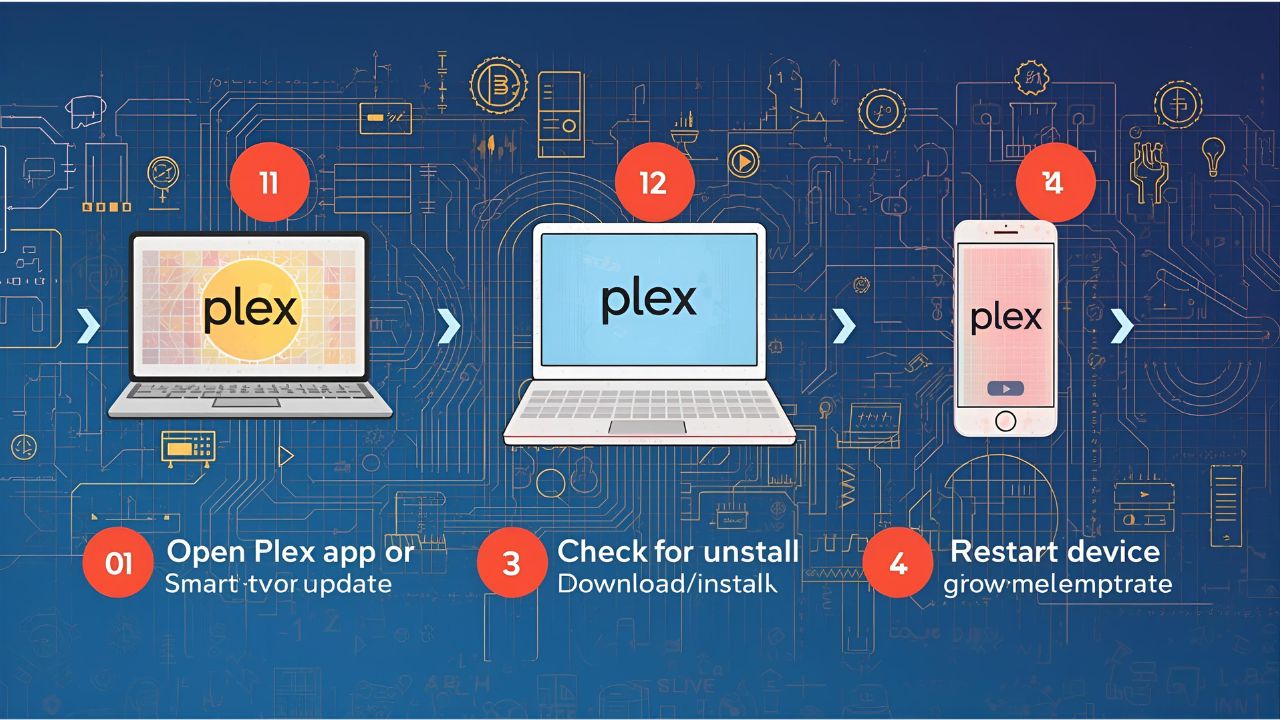
If you use Plex to organize and stream your movies, TV shows, and music, keeping it up to date is important. Updates often fix bugs, improve security, and add new features. If you’ve ever wondered how to update Plex, the process is simple—but it depends on the device you’re using.
Below, we’ll walk through updating Plex on a computer, NAS (Network Attached Storage), or streaming device.
Why Should You Update Plex?
- Security: Updates fix vulnerabilities.
- Performance: New versions run faster and smoother.
- Features: Plex often adds new tools, like better playback or subtitle support.
- Compatibility: Updates ensure Plex works with the latest devices and apps.
How to Update Plex on Different Devices
1. Updating Plex on Windows or macOS
- Open the Plex Media Server app.
- If an update is available, you’ll see a notification in the dashboard.
- Click the notification and download the latest version.
- Install it just like any other software update.
2. Updating Plex on Linux
- Run the following commands in your terminal (depending on your Linux distribution):
- For Debian/Ubuntu:
sudo apt-get update sudo apt-get upgrade plexmediaserver - For Fedora/CentOS:
sudo dnf update plexmediaserver
- For Debian/Ubuntu:
3. Updating Plex on NAS Devices (Synology, QNAP, etc.)
- Log in to your NAS dashboard.
- Open the Package Center (Synology) or App Center (QNAP).
- Check for updates on Plex Media Server.
- Click Update and wait for the process to finish.
4. Updating Plex on Streaming Devices (NVIDIA Shield, Fire TV, Roku)
- Go to your device’s app store.
- Search for Plex.
- If an update is available, you’ll see an Update button.
- Click it to install the latest version.
Automatic Updates
- On computers, you can enable Plex to automatically check for and install updates.
- On streaming devices, most updates happen automatically when the app store pushes them out.
- NAS users may need to manually update if the official package lags behind Plex’s website.
FAQs About Updating Plex
Q1: How often should I update Plex?
As soon as a new version is available—it ensures best performance and security.
Q2: Can I update Plex manually?
Yes, you can always download the latest installer directly from the Plex website.
Q3: Will updating Plex delete my library?
No, your settings and library stay safe when updating.
Q4: Do I need to restart my server after updating?
Yes, restarting Plex ensures the update is applied correctly.
Q5: What if the update fails?
Re-download the installer or check your NAS/device’s compatibility.
Final Thoughts
Knowing how to update Plex keeps your media server secure, smooth, and feature-rich. Whether you’re on Windows, macOS, Linux, a NAS, or a streaming device, the process is straightforward. Enabling automatic updates where possible makes it even easier to stay current.
Leave a Reply