
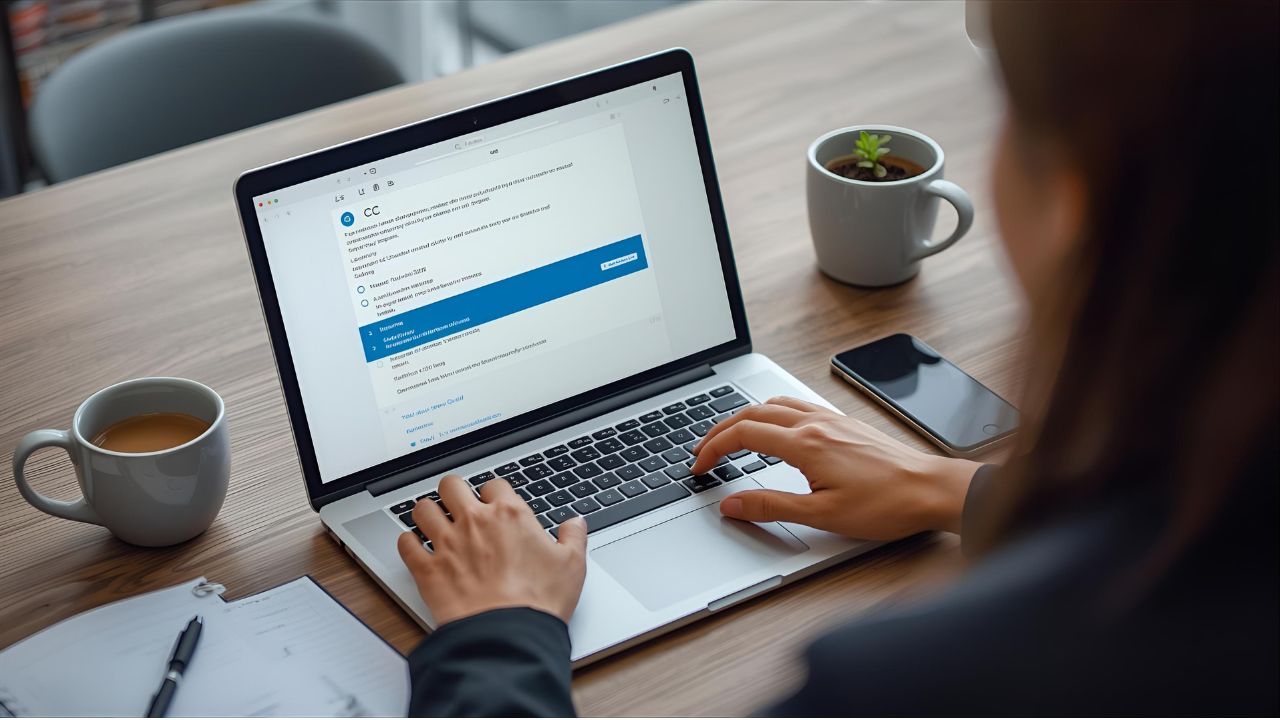
If you’ve ever hit send and immediately thought, “I should have CC’d someone,” you’re not alone. Knowing how to CC someone in an email already sent is less about a single magic button and more about choosing the right workaround for the context. Email systems generally do not allow altering the original sent message in recipients’ inboxes, so you’ll use polite follow-up messages, forwarding techniques, or mail system features to bring the new recipient into the conversation while keeping communication clear and professional.
This guide walks through practical options, explains when to use each approach, and offers wording templates so you can act fast without sounding flustered.
How to CC Someone in an Email Already Sent — Workarounds That Work
1. Send a Brief Follow-Up with CC
The most straightforward way to include someone after the fact is to send a short follow-up email and actually CC the person you forgot. The follow-up should reference the original message and clearly state why you’re adding the new recipient.
Example wording:
Subject: Quick addition to my earlier email
Hi everyone — I’m adding [Name] to this thread to help with [reason]. Original message below for context. Thanks.
This keeps the thread tidy and lets all parties know why the new person is involved. It’s transparent and professional.
2. Forward the Original Email and Explain
If the new recipient only needs the information from the sent email (and not to be part of the ongoing thread), forwarding the original message is a clean option. Forward it to the person, add a short note summarizing why you’re forwarding, and mention if you expect any action from them.
Suggested note:
Hi [Name], forwarding my earlier message on [topic] so you have the background. No action required unless you want to weigh in.
This method is ideal when the person doesn’t need to be on the main thread but should see the content.
3. Use Reply-All and Add the New Person (With Care)
Some email systems allow you to reply-all and add new recipients in the To or CC fields. This effectively restarts the conversation and brings the new person into the loop. Use this when the input of the added person is directly relevant to the continuing discussion.
Be careful: adding someone via reply-all exposes prior replies to the new recipient. If earlier messages contain sensitive content, choose forwarding with context or summarize instead.
4. Resend the Email (When Appropriate)
If the email was sent only moments earlier and you control the recipient group, you may choose to resend a corrected version and include the CC. Make it clear that this is a corrected or updated version.
Short note example:
Resending with an additional recipient included — apologies for the oversight. See corrected email below.
Only use resend when the mistake is minor and the resend won’t create confusion or inbox clutter.
5. Use Mail Server Tools (If Available)
In some corporate environments, admin tools or mail servers allow recall or re-delivery features. These features are limited, often unreliable across different email systems, and should be used cautiously. Check your organization’s IT policies before attempting message recall.
When to Choose Each Option
- Follow-up with CC: Best general option for transparency and inclusivity.
- Forward: Best if the person only needs to see past content, not participate.
- Reply-all with new CC: Use when new recipient must join and be aware of the full thread.
- Resend corrected email: Use for very recent sends where you want a single, definitive message.
- Recall tools: Use only if your mail system supports it reliably and IT approves.
Wording Tips: How to Be Clear and Polite
- Be concise. Short explanations avoid clutter and reduce irritation.
- State the reason. Explain why the person is being added — expertise, approval, or FYI.
- Acknowledge the oversight. A brief phrase like “adding [Name] for visibility” is enough.
- Protect privacy. Don’t expose confidential replies; if any earlier content is sensitive, summarize instead.
- Set expectations. If you need action from the newly added person, clearly state what you need.
Common Mistakes to Avoid
- Adding someone with no explanation. Always say why.
- Using reply-all to add someone when older messages contain sensitive content.
- Resending identical emails too often; that creates inbox fatigue.
- Assuming recall features work across platforms. They often do not.
FAQs
Q1: Can I edit the original email and add someone after it’s sent?
A: No. Standard email systems do not allow editing a message already delivered to other inboxes. Use follow-ups, forwarding, or reply-all instead.
Q2: Is it rude to add someone after sending the original message?
A: Not if you explain briefly. Transparency and politeness make the addition acceptable, and it’s common practice in professional settings.
Q3: Will using “reply all” expose private replies to the new recipient?
A: Yes. If previous replies contain sensitive or private information, avoid reply-all and instead forward a redacted summary or the original message with context.
Q4: When should I use the recall feature?
A: Only if your organization uses a mail system that supports recall reliably and the content needs immediate correction. Even then, it’s often better to send a follow-up.
Q5: How should I add someone who only needs to read, not reply?
A: Forward the original email with a short note stating that they are being copied for information and no action is required, or send a follow-up and CC them with an “FYI” note.
Final Thoughts
Knowing how to CC someone in an email already sent is a small but important skill in professional communication. The key is to act promptly, choose the method that respects privacy and context, and explain your reason briefly. A tidy follow-up or thoughtful forward keeps everyone informed and maintains professionalism — and that’s what good email etiquette is all about.
Leave a Reply