
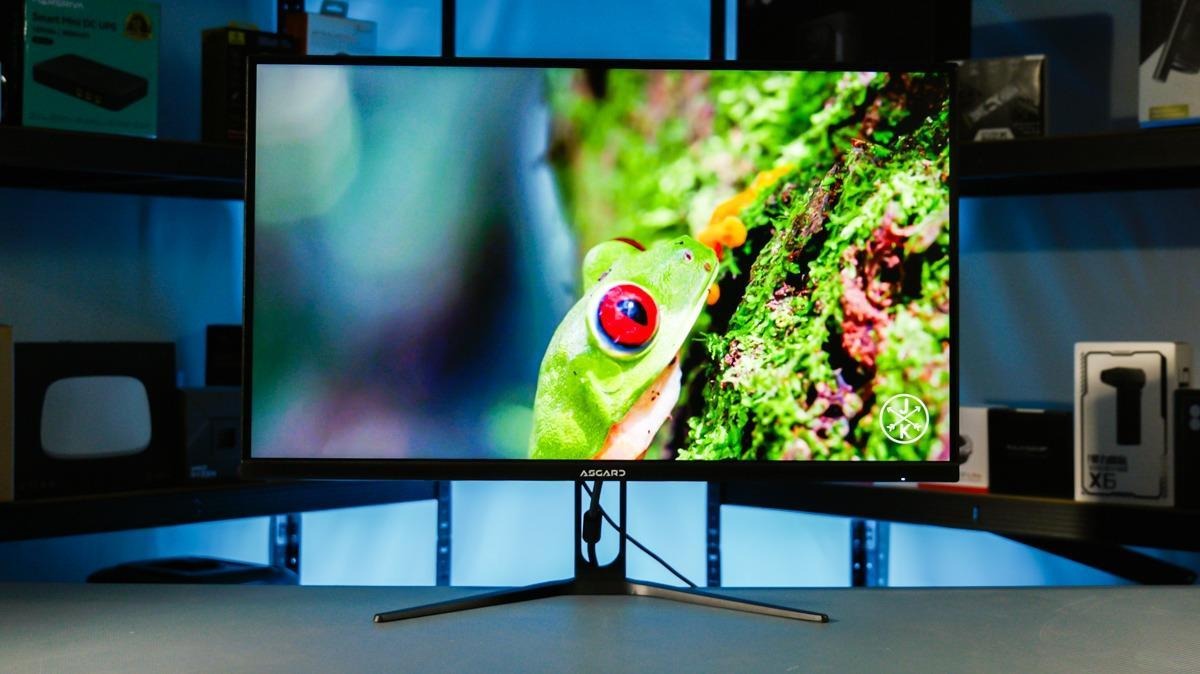
A fast monitor can be an appealing upgrade, but the largest number on the box rarely tells you how it will fit into your setup. A laptop with limited video outputs, a shallow desk or an uncomfortable screen height can matter more than a small increase in refresh rate. Start by identifying those constraints before comparing offers.
Root Nation’s ASGARD AS275QM review provides a useful example. The reviewer examined a 27-inch QHD IPS model advertised at 200 Hz and found practical limitations worth checking on any similar purchase: the maximum refresh rate depended on the connection, while the supplied stand offered only basic adjustment. Those details help turn a specification list into a buying decision.
Follow the whole video connection
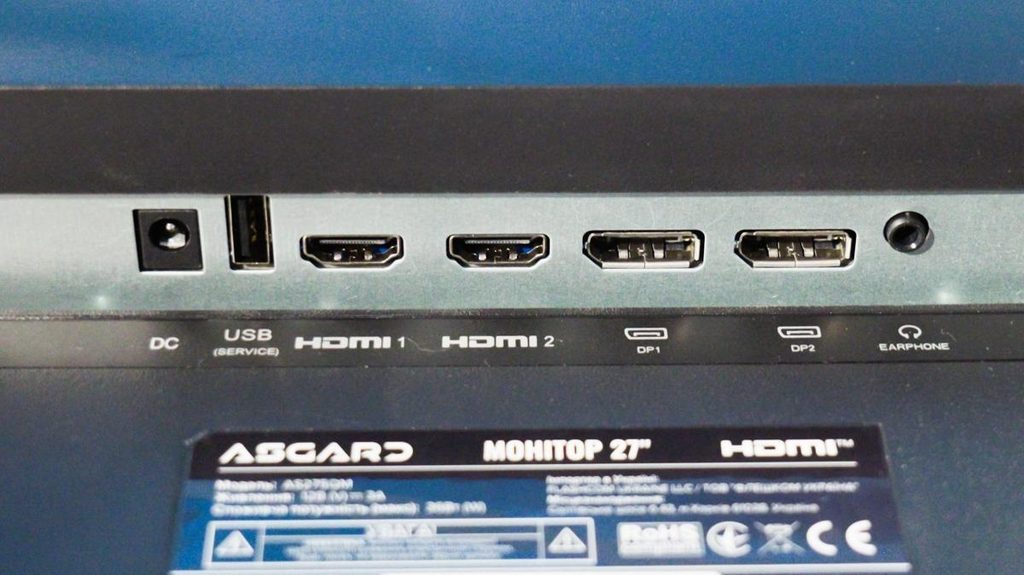
Write down how the monitor will connect to your computer. Include every adapter, docking station and cable between them. A display’s fastest advertised mode is useful only if the complete connection supports it. Two sockets with familiar shapes do not necessarily provide identical capabilities.
In the AS275QM review, Root Nation reports that 200 Hz at QHD requires DisplayPort, with HDMI limited to a lower refresh rate. A laptop owner should therefore check the laptop’s supported video outputs before ordering. If an adapter is necessary, confirm its supported resolution and refresh rate together, rather than relying on a vague claim that it supports high resolution.
After installation, inspect the operating system’s display settings. Select the intended resolution and available refresh rate, then check the monitor’s own information screen. This simple verification helps distinguish a connection limitation from a setting that was left at its default.
Budget for the position of the screen
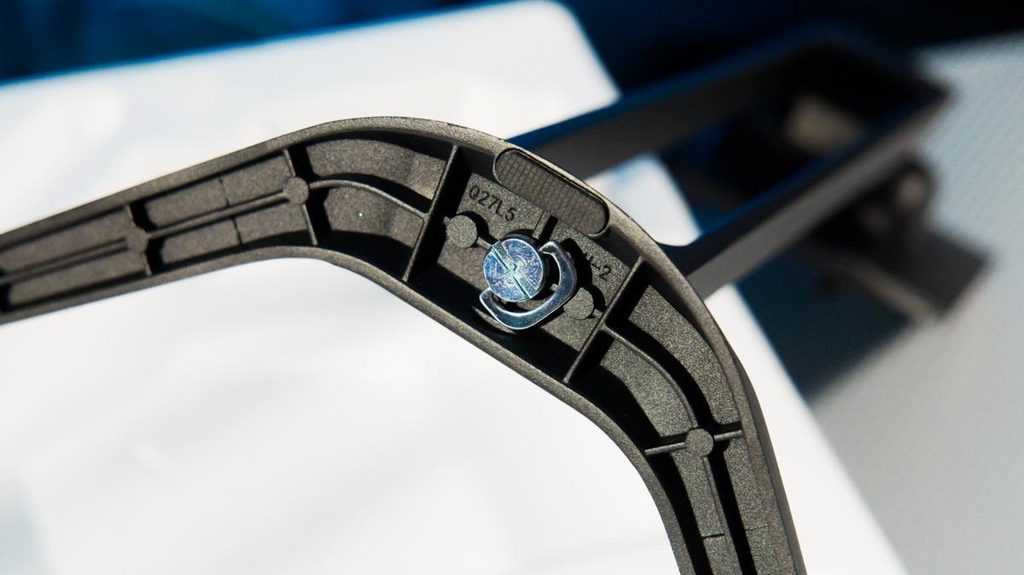
The stand affects every working session. Measure where the screen will sit and check whether the supplied base leaves enough space for your keyboard and mouse. Height adjustment can be especially valuable when the same desk serves different people or switches between work and games.
Root Nation found that the AS275QM stand adjusts for tilt but does not offer height or swivel adjustment. The review also identifies support for a 100 × 100 mm VESA mount. An optional arm may address positioning, but its price belongs in the total purchase cost. Check the arm’s supported load and mounting requirements, and make sure your desk can accept its clamp or base.
Separate headline features from evidence
Refresh rate describes how often the screen can update. It does not, by itself, establish motion clarity, the quality of an overdrive setting or the experience in every game. Look for observations of moving objects and visible trailing, preferably under settings you would actually use. Your computer must also produce enough frames for a higher refresh ceiling to be useful.
Treat HDR wording with the same care. A compatibility label is not a complete assessment of contrast, highlights or dark scenes. Avoid making an HDR promise the deciding reason to buy a budget screen unless a detailed review demonstrates the experience you want. For ordinary desktop work, readable text, comfortable brightness and manageable reflections may deserve more attention.
Make the comparison about your desk
Build a shortlist around three requirements: a connection that delivers your intended mode, a screen position you can sustain comfortably, and an image suited to your actual games and applications. Root Nation’s monitor reviews provide additional examples to compare across those requirements. Compare the review evidence and the exact model, rather than assuming every screen from one brand behaves alike.
Before paying, check the local warranty, return policy and included cables. Keep room in the budget for any necessary mounting hardware. A slightly less ambitious specification can be the more useful purchase if it works with your existing computer and fits your desk without further compromises.
Leave a Reply